
Scenes and prefabs
Draw stadiums with discs, walls, lines and joints; reuse groups of objects as prefabs; give each player a body.
Scenes
A scene is a place a match can happen in. Open one from the Project panel.

| Tool | Key | Makes |
|---|---|---|
| Select | V | Selects and moves. Drag on empty space to box-select |
| Disc | D | A disc where you click |
| Visual | S | A visual of the shape picked from its arrow menu (below) |
| Wall | W | A wall, one click per point. Click the first to close it; Escape stops |
| Line | L | A line that notices discs crossing it |
| Joint | J | A link between two discs |
| Instance | I | A copy of a prefab |
Moving around:
Space + drag pans, the mouse wheel zooms, F frames the selection.
Arrow keys nudge what you selected.
Drag a selected wall's square handles to move its points, and the dot in the middle of an edge to curve it. Alt-click a dot to add a point there, or a square to remove it.
A selected visual has handles too: a line's or polygon's points, a box's or image's corners (the opposite corner stays put), a circle's or arc's radius, and an arc's two ends.
The ring above a selected visual, disc or wall rotates it, in steps of 15°; hold Alt to turn it freely.
Hover a tool to see what it does and its key.
What players see of each object is its Look in the inspector: a disc's fill, outline, avatar, layer and spin; a wall's line colour and width. Lines and joints have no look; Play's physics view shows them.
Known by in the inspector hides a disc or wall from some players. It is an audience built from blocks: Everyone, Players (any list, such as a team), Players with a role, Players near it (seeing through no wall of chosen groups), Any of several, and All but some players. It follows what it reads: when a team changes, so does who knows the disc. Players outside never receive it; see Who sees what.
Visuals
A visual draws something players see: a circle, box, polygon, line, arc, text, image, or a group of visuals that move, turn and fade together.
Pick the shape from the arrow beside the Visual tool; the tool keeps it for the next one. The shape shows where it will go before you click.
Circle, text, image: click where it goes. Drag out a circle to set its radius.
Box, line: drag from one point to the other, or click both. Hold Shift for a square box, or a line at a multiple of 45°.
Arc: drag from its center; the drag sets its radius and where it starts. Drag its ends round the circle afterwards.
Polygon: click each corner, then the first one to close it (or press Escape, or right-click, once it has three).
Lines and arcs start as white outlines; the other shapes start filled white. An image shows the picture chosen in its Image field, uploaded under Assets.
A group holds other visuals and draws them in its own frame: moving, turning, scaling or fading the group does the same to all of them, as for a score badge made of a box and a text. To make one, select the visuals, right-click and choose Group; Ungroup takes them out again. In the Scene tree, drag a visual onto a group to put it inside, or out of it to take it out; it stays where it is. A group left empty shows a small dashed square, so it can still be picked.
A click on the canvas picks the whole group. Double-click it to pick the visual under the pointer inside; while one of its visuals is selected, clicks pick its other visuals, and they move, resize and turn like any other.
The inspector changes a placed visual's shape at any time.
Where: on a body (it follows it, with an offset) or at a point.
Shape and its sizes; a polygon's or line's points are dragged on the canvas.
Fill, Outline, outline width, rotation, scale, opacity, layer, and Shown to, an audience like Known by. Players near works on a visual on a body, or at a point the game knows; one placed by what screens work out, such as a disc's position, must go on the body instead. To fade it in, set Opacity to Fade by distance.
A ring is a circle with an outline and no fill: give its radius as the body's radius plus a gap, such as
Ball.radius + 4.
Every value is a binding: a description that always holds. What every screen can work out by itself, such as a disc's position, speed or height, is drawn every frame at no cost to the game; what only the game knows, such as a variable or a name, is sent again whenever it changes. You never choose between live and set once.
Leaves the ground lets a disc fly: its height, rising speed, fall gravity and landing bounce. Tall (under Collision) sets how tall a disc or wall stands; objects only touch where their heights overlap. During play, rows use Launch {disc} upward at {speed}, Set {object}'s tall to {value} and the trigger {disc} lands; Create a disc and Create a wall take the same settings. See Height.
Settings → Starting scene picks where matches start.
Prefabs
A prefab is a group of objects you can reuse, like a player or a goal.
Press New prefab in the Project panel and draw in it.
Place copies in scenes with the Instance tool.
Change a copy in the Inspector; reset brings back the prefab's value.
One body per player
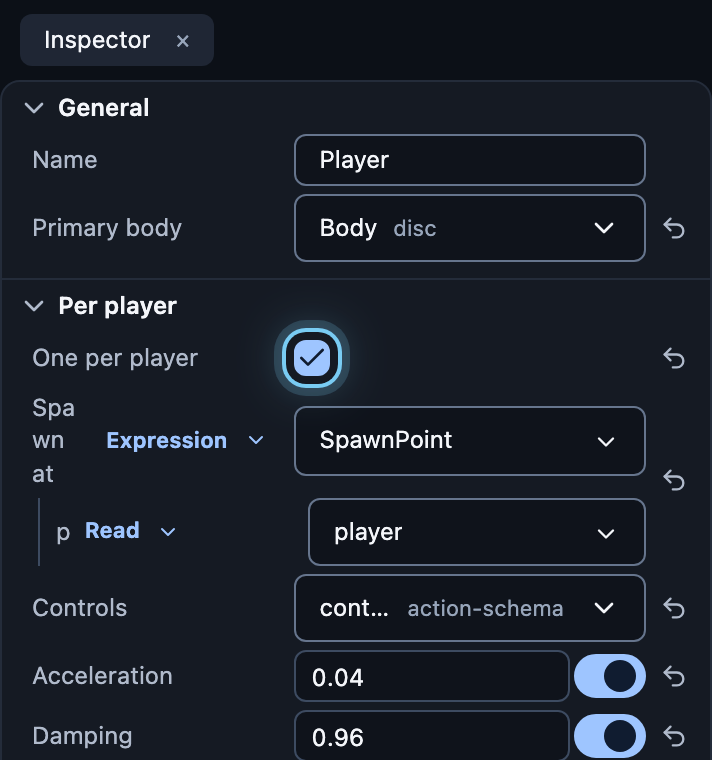
Turn on One per player and every player gets their own copy:
Spawn at: where it appears, such as
SpawnPoint(player).Controls: the keys it uses (see Controls).
Acceleration and Damping: how it moves.
Rows can then use the player's disc, for example in A player enters the match.